Proof PDF
This high-resolution preview is created when you click on the Export button in Export View. This is the same as the PDF we print from but the Proof PDF is faintly watermarked on every page. The Proof PDF is the file you should use to thoroughly proof your design before sending it to Momento for printing. The Proof PDF is created when you export your file from Export View in the Momento software. Your Proof PDF is saved in the same folder that you saved your Project file in, and it includes the word PROOF in the filename.
You can print the Proof PDF out on your home printer, but for proper printing (without a watermark) you need to send your file to Momento.
Note: Depending on the version of Acrobat Reader you are using, there may be a slight colour difference between how the photos look in the Momento software versus the PROOF pdf file. Please disregard these colour differences.
Viewing in Acrobat Reader
Open the Proof PDF by double clicking the file icon or by opening the Acrobat Reader software and using the Open option in the File Menu. If you do not have Acrobat Reader installed on your computer, you will not be able to open the file.
- Double-click on the PROOF.pdf file
- Check every page carefully for errors i.e. images out of alignment, spelling errors, text wrapping
- Double check that the title on the Cover and Spine is correct
Editing your file
If you need to make any changes to your file, simply reopen the file in the Momento software, make the necessary changes then re-export your project. Note: You MUST re-export your project with the corrections otherwise you will upload and order the incorrect file.
Optimum Acrobat Reader Settings
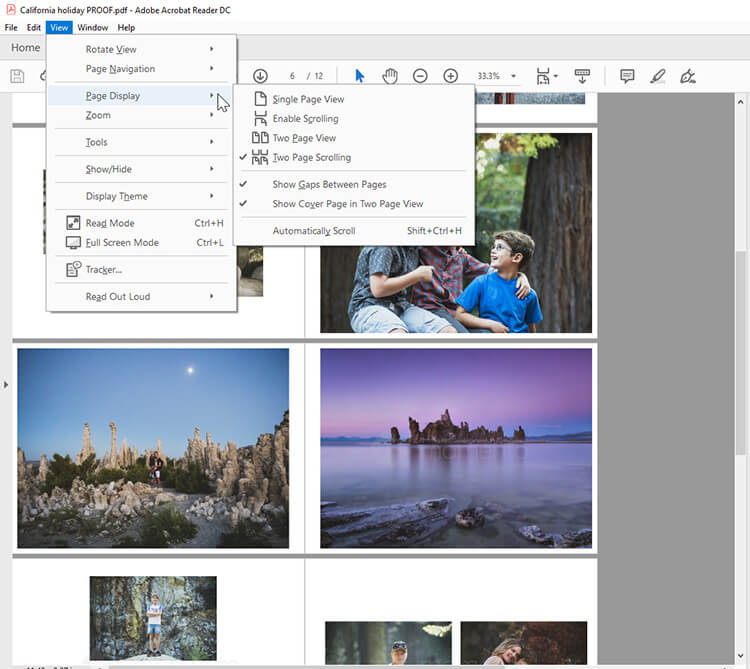
For optimum settings to check whether your file contains any font or text errors, resolution issues or positioning problems we recommend the following settings:
- View > Zoom > Fit Width
- View > Page Display > Two-Up Continuous
- View > Page Display > Show Gaps Between Pages
- View > Page Display > Show Cover Page During Two-Up
Proofing your PDF
Before you place an order on the Momento website you are asked to confirm that your file is perfectly ready for ordering by ticking a check box. Just like a professional designer has to proof a file before it goes to print, so do you, otherwise the file may be printed with an error. The best way to proof your project design is to review the PDF Proof thoroughly.
Font issues
To give you greater creative freedom, the Momento software allows you to use all the fonts that you have installed on your computer. We suggest you review the Proof PDF closely for any font issues, as some free fonts are not well made and may be incompatible with our software, and in place of the letters squares and other odd symbols will appear.
If your PDF Proof does present font issues, you should change this font to another or it will print incorrectly. As with all file edits made after proofing, make sure you export the file again before sending it to Momento.
Image Credits: Heartstory